Cloud Account Setup
This is the first workflow a new PhaserForge user should complete.
- create your PhaserForge account with an email invite code, or log in if you already have an account
- confirm you are signed in
- connect the GitHub account you want PhaserForge to publish through
What You Need Before You Start
- a running PhaserForge session
- your email address
- an invite code if you are creating your account for the first time
- the GitHub account you intend to use for publishing
NOTE: If you do not already have a GitHub personal account:
- open GitHub's official account-creation guide: Creating an account on GitHub
- complete the GitHub signup flow and verify your email address
- return to PhaserForge and continue with the connection steps below
1. Open the Cloud Pane
Open the Cloud tab in the right-side pane.
When the account section appears:
- first-time users should expect the
Createtab to be selected by default - returning users who already created a PhaserForge account should expect the
Log intab to be selected by default
2a. Create Your Account with the Invite Code
If you do not already have a PhaserForge account:
- stay on the default
Createtab - enter your email
- enter your password
- enter the invite code
- submit the form
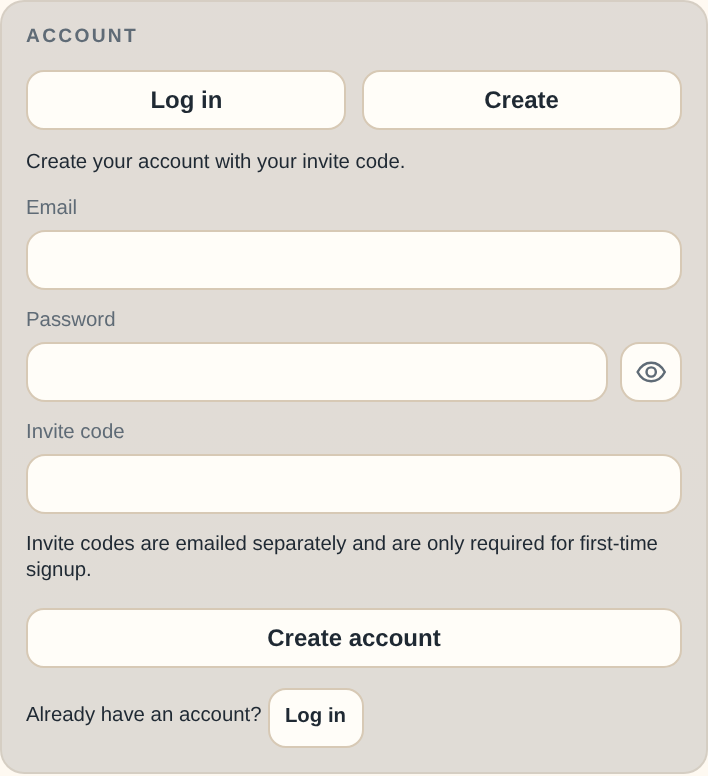
Figure 1. Cloud account create form.
Success check:
- The account flow accepts your signup and you land in a signed-in state.
2b. Log In
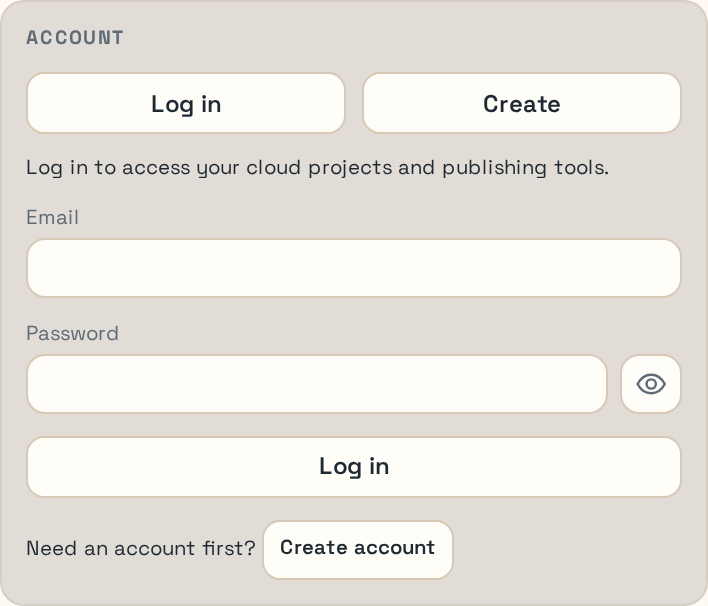
Figure 2. Cloud account log in form.
If you already have a PhaserForge account:
- confirm the
Log intab is already selected, or switch to it if needed - enter your email
- enter your password
- submit the form
Success check:
- The Cloud pane shows you as signed in.
3. Connect GitHub
After you are signed in, connect the GitHub account you want PhaserForge to use for publishing.
Use the Cloud pane action for:
Connect GitHubif no GitHub account is linked yetSwitch GitHub…if the wrong GitHub account is currently linked
Continue through the GitHub authorization flow in the browser. Figure 3 shows the signed-in, GitHub-linked state you want before moving on to project work.
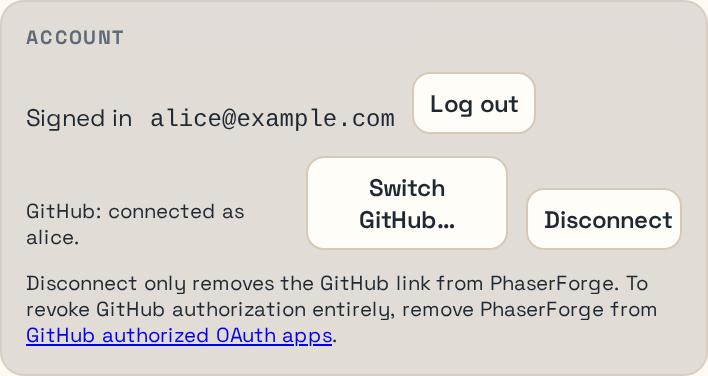
Figure 3. Cloud account signed-in and GitHub-linked state.
Success check:
- The Cloud pane reports that GitHub is connected.
- The publish section no longer asks you to connect GitHub first.
4. Confirm You Are Ready for the Normal Workflow
Before you move on, make sure all three conditions are true:
- you are signed in to PhaserForge
- GitHub is connected
- the Cloud pane publish section is available
At that point, you are on the intended first-user path.
What to Do Next
Continue to Build the Pattern Demo.